
Bring your crew onto a night
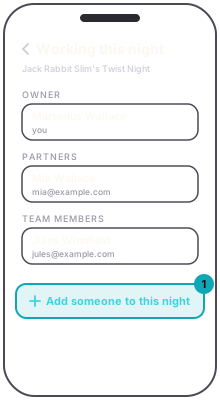
A team is set up one night at a time. Open the event in the app and press Team. The screen, Working this night, lists the owner, your partners, your team members and anyone you have invited who has not joined yet.
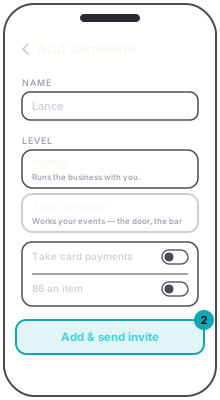
Press Add someone to this night and type their name. Then pick a level.
Partner runs the business with you: everything except requesting payouts, Stripe setup, adding another partner, your promoter name, and deleting the account.
Team member works your door, bar and merch. Two switches add more: Take card payments lets them take Tap to Pay on their own phone, and 86 an item lets them mark something sold out mid-service.
If they work for you or worked for you before, they come up as you type. Nobody else is searchable. Pick them and press Add to team. We email to say they have been added, and they sign in with their usual password. For anyone else, press Add & send invite and your phone's share sheet opens, so you can send the link by text or however you reach them. What they do next is in You were invited to someone's team.
Later, Edit access changes a team member's switches, and Remove takes someone off this night. An invite nobody has used yet waits under Invited, with Send a new link (the old link stops working) and Cancel.
Only the owner can add or remove partners. A partner sees Add a team member instead, and can add team members.
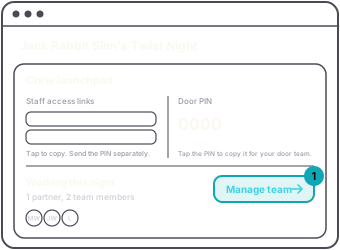
On the web dashboard, open the event and find Working this night in the Crew launchpad panel, then press Manage team. Everyone on the night is in one table. A team member's Card payments and 86 items switches save as you flip them. Press + Add someone and a new row opens at the bottom: type a name, pick Team member or Partner, set the switches and press Add. Someone who works for you is added straight away and emailed. For anyone else you get an invite: press Copy link and text it to them. Copying the link again later makes a new one, and the page warns you first, because the link you already sent stops working. Remove and Cancel ask before they do anything.
If you are someone's partner, their night is in Your Events on the web, marked PARTNER with their name. You get the same console they do, except Message: only the promoter can message the night's ticket holders. On its Payouts page you see every figure, and in place of the button it says only the promoter can request the payout. If you are a team member, the nights you work are in the app, not on the web dashboard. Signing in on the web takes you to a page that says so, unless you also run events of your own or are a partner on a night.
A team member is added to one night, not to everything you run. Your regular bartender can work Friday without being on Saturday. When you add them to the next night, they come up as you type, under people who work for you or worked for you before.