
Sales alerts and reminder emails, and how to quiet them
When tickets sell, shabanga tells you by email and with a push on your phone: the first sale, sales as they come in, milestones, a tier selling out and the next one opening, running low, sold out, and sales going quiet with the show still ahead. A rush is collected into one message rather than one per sale. The email goes to your account address. The push goes to every phone you are signed in on, so it needs notifications turned on for shabanga.
Your default is under Alerts on the Account tab in the app, or Alerts on the dashboard. The main switch is Notify me when tickets sell. Below it you can turn each kind of alert on or off.
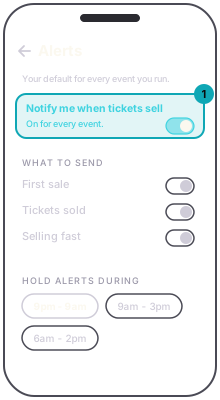
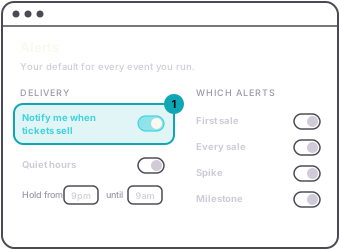
Quiet hours hold alerts until the window ends. Unless you change it, alerts are held from 9 PM to 9 AM at the venue. In the app, pick a window under Hold alerts during, such as 9pm – 9am or 9am – 3pm, or Never hold. On the web, switch on Quiet hours and set Hold from and until. Sold out always comes through, whatever the window says.
One event different? Open Alerts on that event. It says "Following your defaults" until you change something there, then "Custom for this event". Use my defaults puts it back. Changing your default never reaches back into an event you have already changed.
From three days before a published night to the day itself, you also get one reminder a day, by email and push, ending with a checklist on the day. There is no separate switch for these: turning off Notify me when tickets sell, or the event's own switch, stops them too. A night in a series gets no reminders of its own. Instead, while a published series has nights in the next seven days, you get one summary a day for the whole series.