
Keep the location secret until you reveal it
Turn on Hide location until I reveal it when you create the event, or any time after in Edit event. On the web it sits under the date and time; in the app, under the venue. Pick what buyers see instead, such as Secret location or Revealed before doors, or type your own. Still fill in the real venue and address: they are saved, and only your own event screens show the address. Your public promoter page still lists the event with the venue's name.
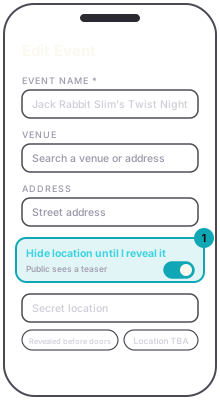
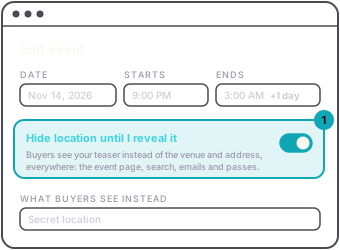
While it is hidden, the venue and address are left off the event page, search, the link preview when someone shares it, ticket emails and Wallet passes. Buyers see your teaser in their place. Selling works exactly the same.
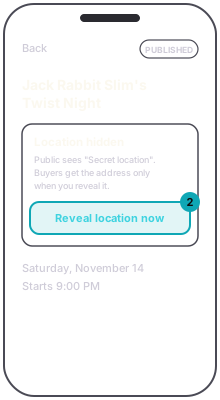
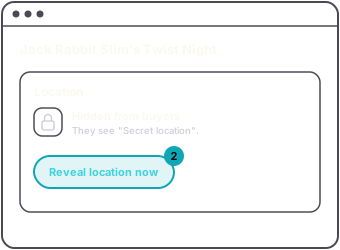
To reveal it, open the event, press Reveal location now, and confirm with Reveal. The address goes public straight away. Once revealed, treat it as public: people may already have seen it.
People who already bought see the address the next time they open their ticket on their phone or on the site. Their confirmation email does not change, and a Wallet pass they added while it was hidden keeps showing your teaser. So after you reveal, press Email ticket holders the address on the web, or Notify in the app. It opens a message with the venue and address already filled in for you to check and send. Anyone who buys after the reveal gets the address in their confirmation.
When you create an online event on the web, the switch is not offered, because there is no place to hide. It is not offered when you create a series on the web either.