
Make a discount code
A discount code comes off the ticket price. The booking fee is worked out on the price after the discount, so it can come down a little too.
- Open Discounts on the event.
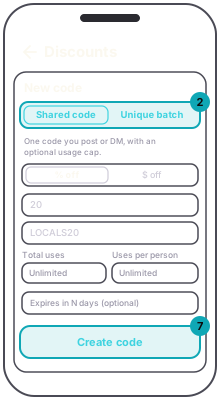
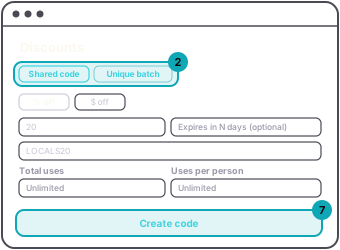
- Choose Shared code for one code you post or send around, or Unique batch for a set of one-time codes to hand out one by one.
- Choose % off or $ off, and enter the amount.
- If you want it to stop working after a while, enter a number of days in Expires in N days.
- For a shared code, type the code, such as LOCALS20. Total uses caps it across all buyers: 50 means the first 50 orders. Uses per person limits one buyer, matched by their checkout email. Leave either blank for no limit.
- For a batch, enter how many codes you want and, if you like, a batch label such as VIP.
- Press Create code for a shared code. For a batch, press Generate batch on the dashboard or Generate codes in the app. The app then offers Share for the list of codes.
App
Web
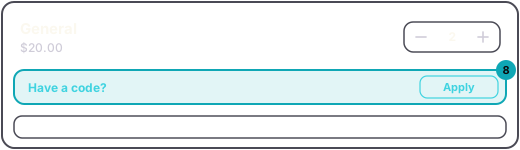
Buyers type the code in Have a code? at checkout.
Guest
On the dashboard every code is listed with how many times it has been used. Delete a code to stop it working.
AppMy Events › the event › Discounts › Create code, or Generate codesWebYour Events › the event › Discounts › Create code, or Generate batchGuestHave a code? at checkout.